Help

How Slate works, on the device in your hand.

Pick what you are holding. Every topic below shows that screen, and you can tap through each one or watch it work.

01

Getting started

Install Slate from Google Play and open it. There is no account to create and nothing to sign in to. A short first run asks whether you say marking or grading, picks a mark scale and, if you want, connects AI; everything can be changed later in Settings.

Three tabs run along the bottom: Mark is the pile and what is next, Classes is the markbook, Settings holds scales, comment types, backups and the optional AI connection.

Install Slate from Google Play and open it. There is no account to create and nothing to sign in to. A short first run asks whether you say marking or grading, picks a mark scale and, if you want, connects AI; everything can be changed later in Settings.

On a tablet the app is three panes: a rail of Mark, Classes and Settings down the left, the pile beside it, and whatever you opened on the right.

Install Slate from Google Play and open it. There is no account to create and nothing to sign in to. A short first run asks whether you say marking or grading, picks a mark scale and, if you want, connects AI; everything can be changed later in Settings.

On a foldable the app is three panes: a rail of Mark, Classes and Settings down the left, the pile beside it, and whatever you opened on the right.

Install Slate from Google Play and open it. There is no account to create and nothing to sign in to. A short first run asks whether you say marking or grading, picks a mark scale and, if you want, connects AI; everything can be changed later in Settings.

On a Chromebook or PC the app is three panes: a rail of Mark, Classes and Settings down the left, the pile beside it, and whatever you opened on the right.

Install Slate from Google Play and open it. There is no account to create and nothing to sign in to. A short first run asks whether you say marking or grading, picks a mark scale and, if you want, connects AI; everything can be changed later in Settings.

On a headset the app is three panes: a rail of Mark, Classes and Settings down the left, the pile beside it, and whatever you opened on the right. On a headset it is a floating panel: drag it next to the real pile on your desk and size it as you like.
10:24
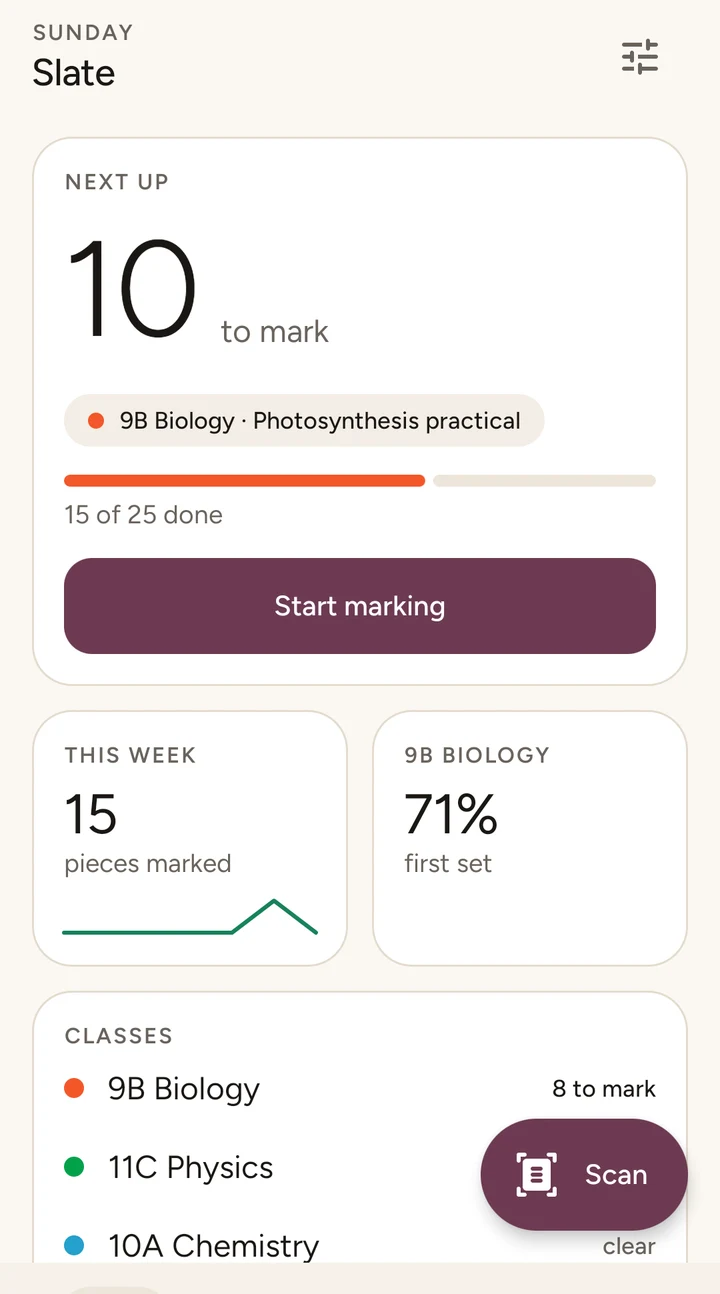
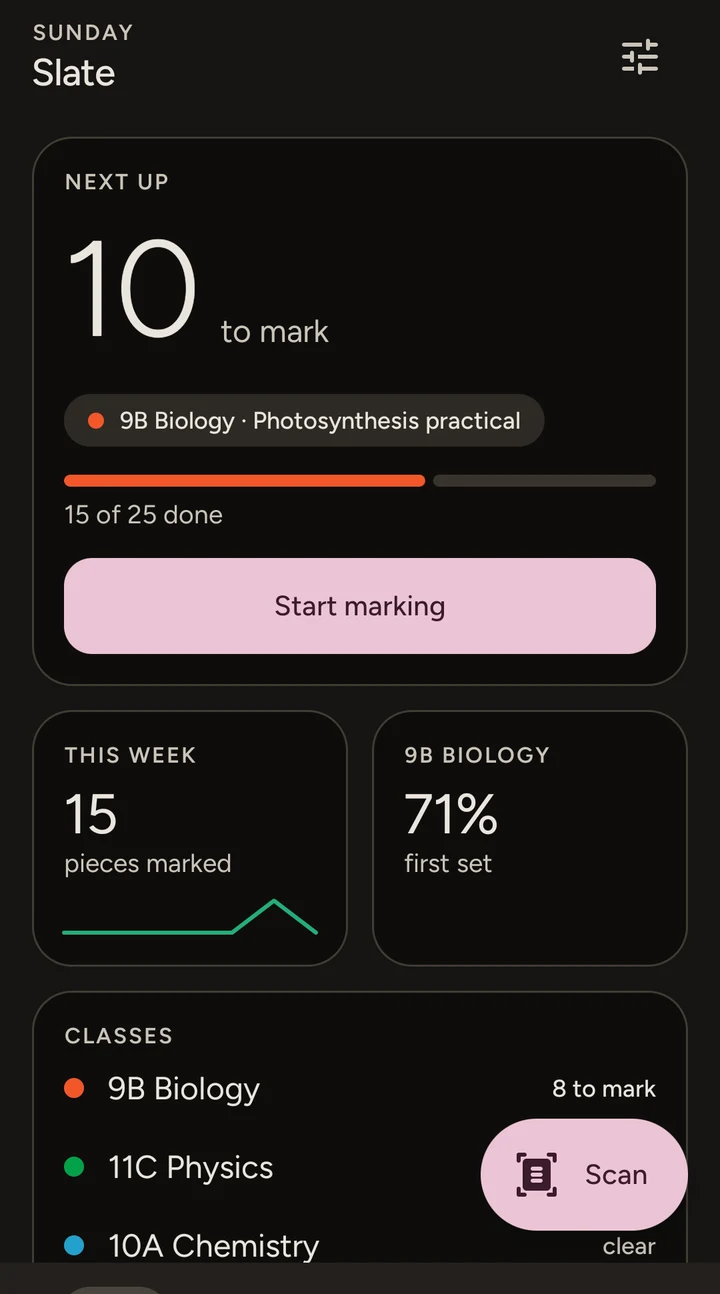
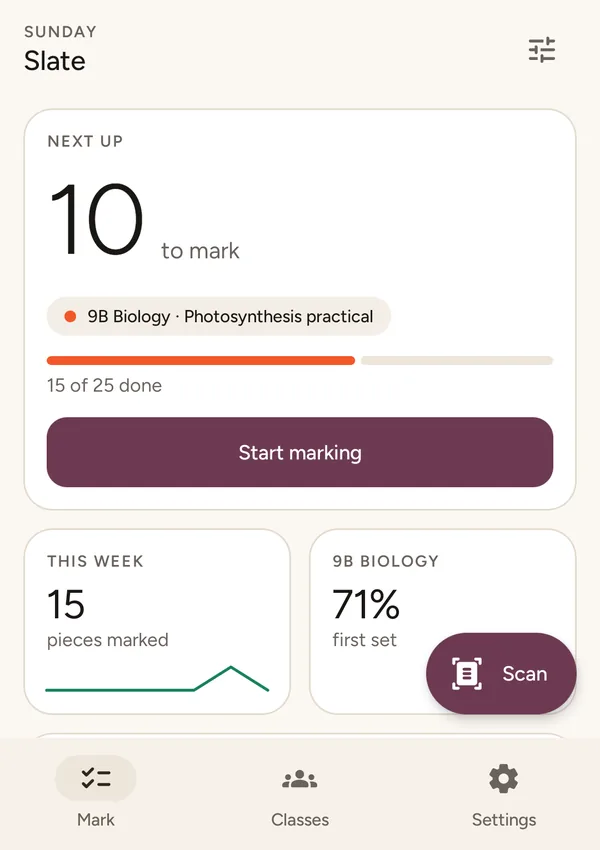
Slate's home on a phoneSlate's home on a phone
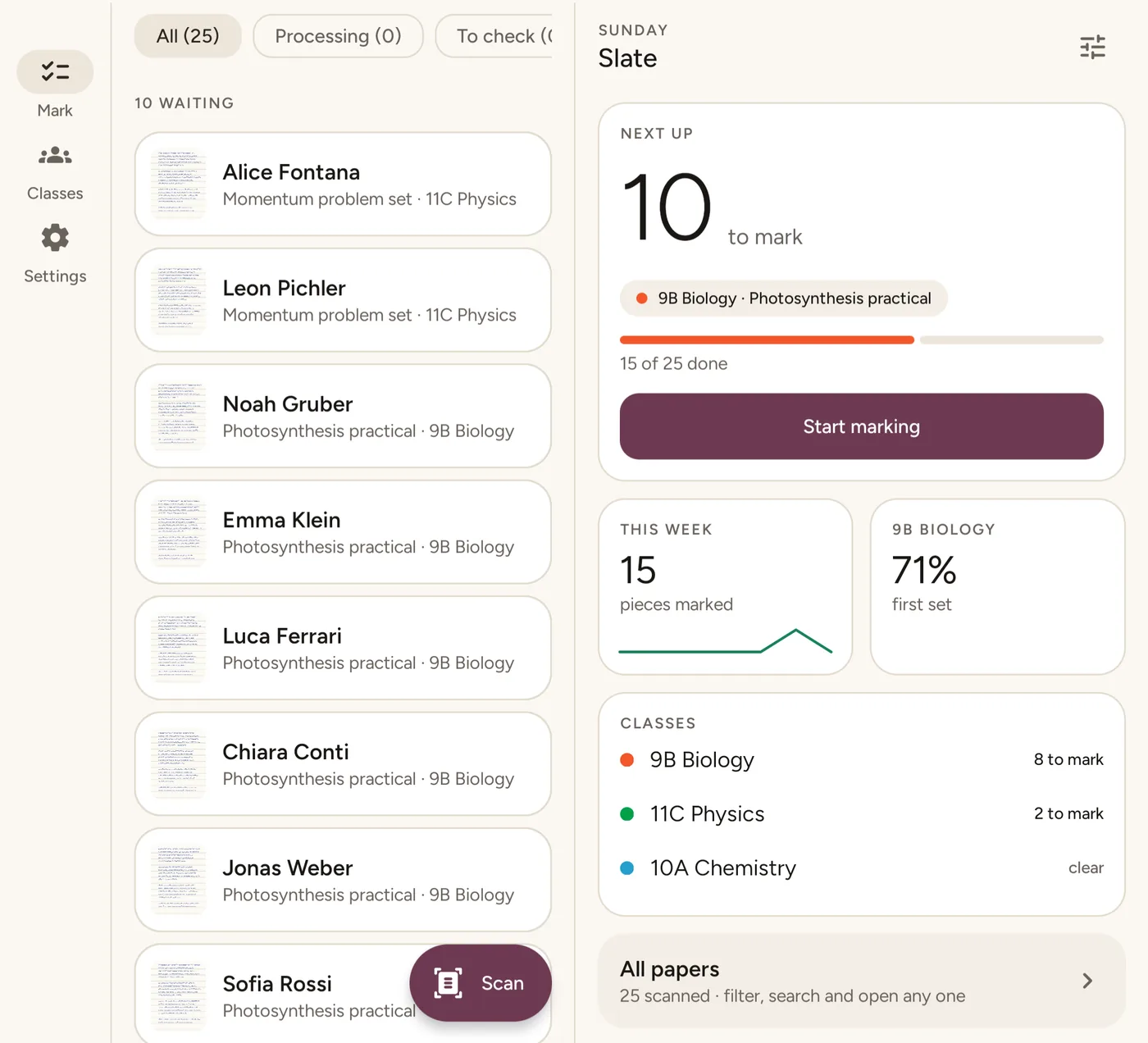
01Next up

The pile, counted, and the assignment it belongs to. Start marking opens the first paper.
10:24
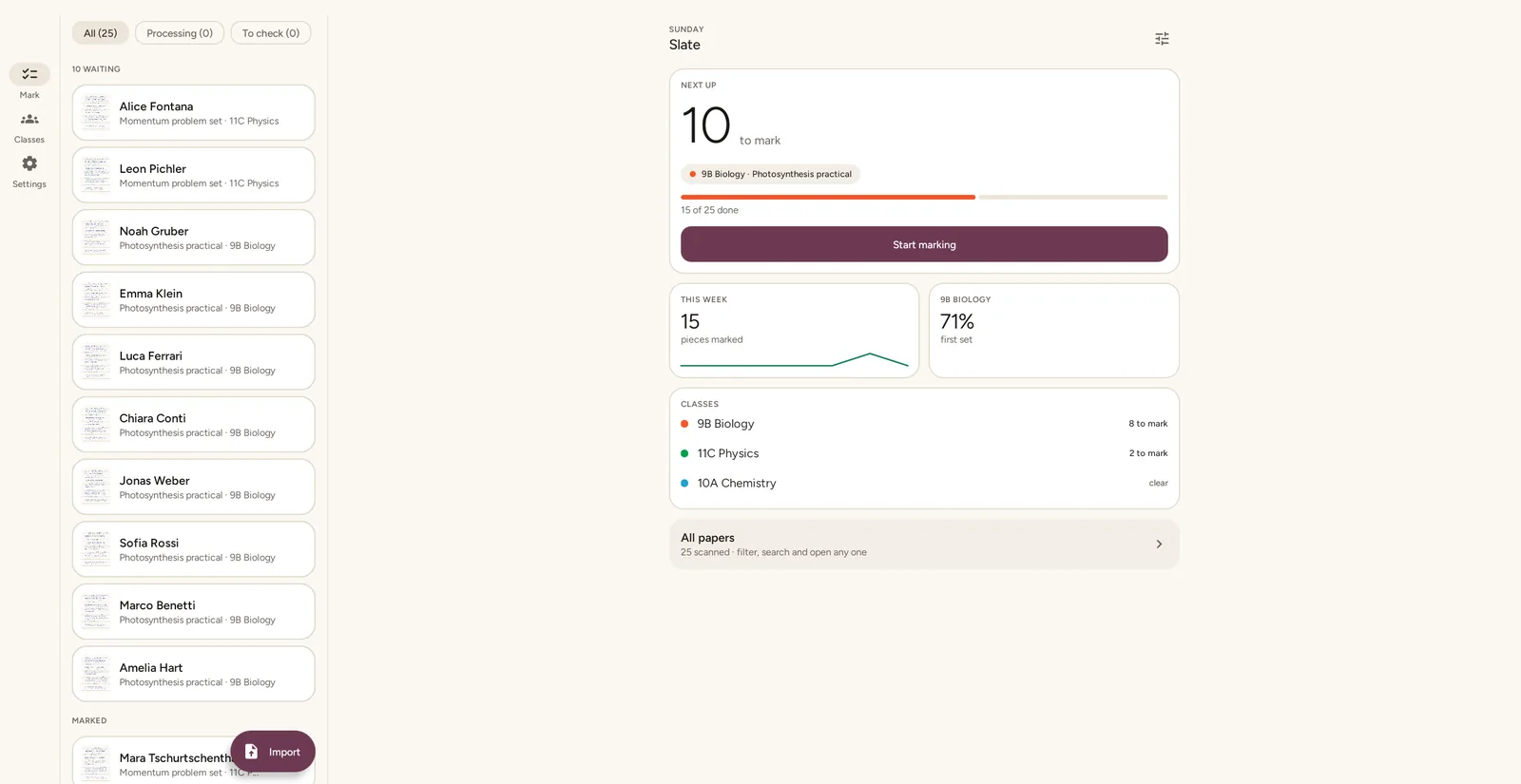
Slate's home on a tablet
01Mark

The rail down the left is the whole app: Mark, Classes, Settings.
Slate's home on a foldable
01The rail

Mark, Classes, Settings down the left leaf.
Slate
Slate's home on a Chromebook or PC
01The rail

Mark, Classes, Settings down the left, like a tablet.
10:24
Slate's home on a headset
01The rail

Mark, Classes, Settings down the left, like a tablet.
02

Classes and pupils

Open Classes and add one: a name, a colour and a mark scale. Add pupils by name, or, with AI connected, point the camera at a paper class list and let the model read the names off it.

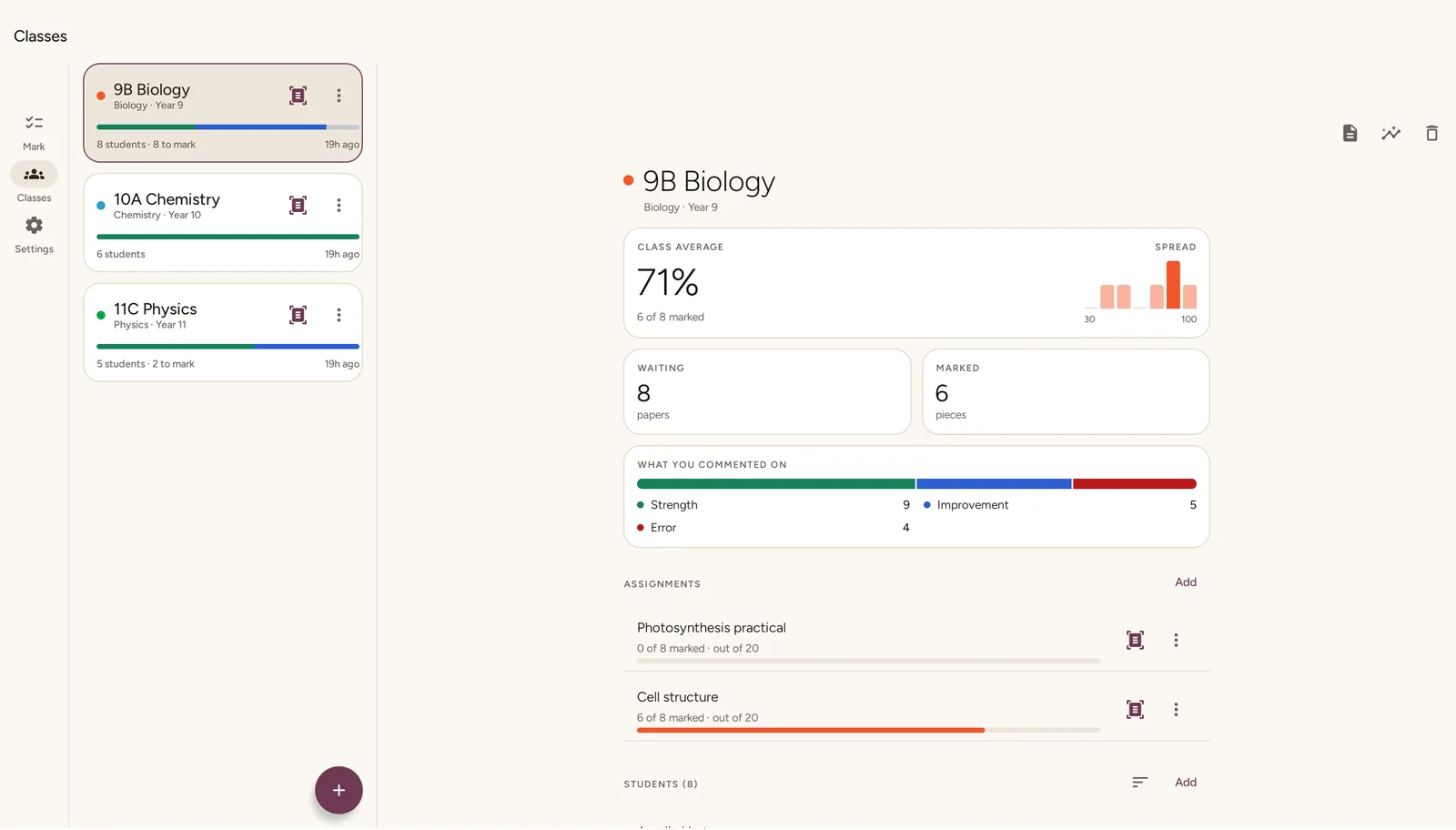
Tap a class to see everything marked for it: the assignments, the spread of marks, who is missing work. Tap a pupil for their record, every mark and comment with the trend over the term.

Open Classes and add one: a name, a colour and a mark scale. Add pupils by name, or, with AI connected, point the camera at a paper class list and let the model read the names off it.

The classes stay on the left while the one you tapped fills the right: everything marked for it: the assignments, the spread of marks, who is missing work. Tap a pupil for their record, every mark and comment with the trend over the term.

10:24
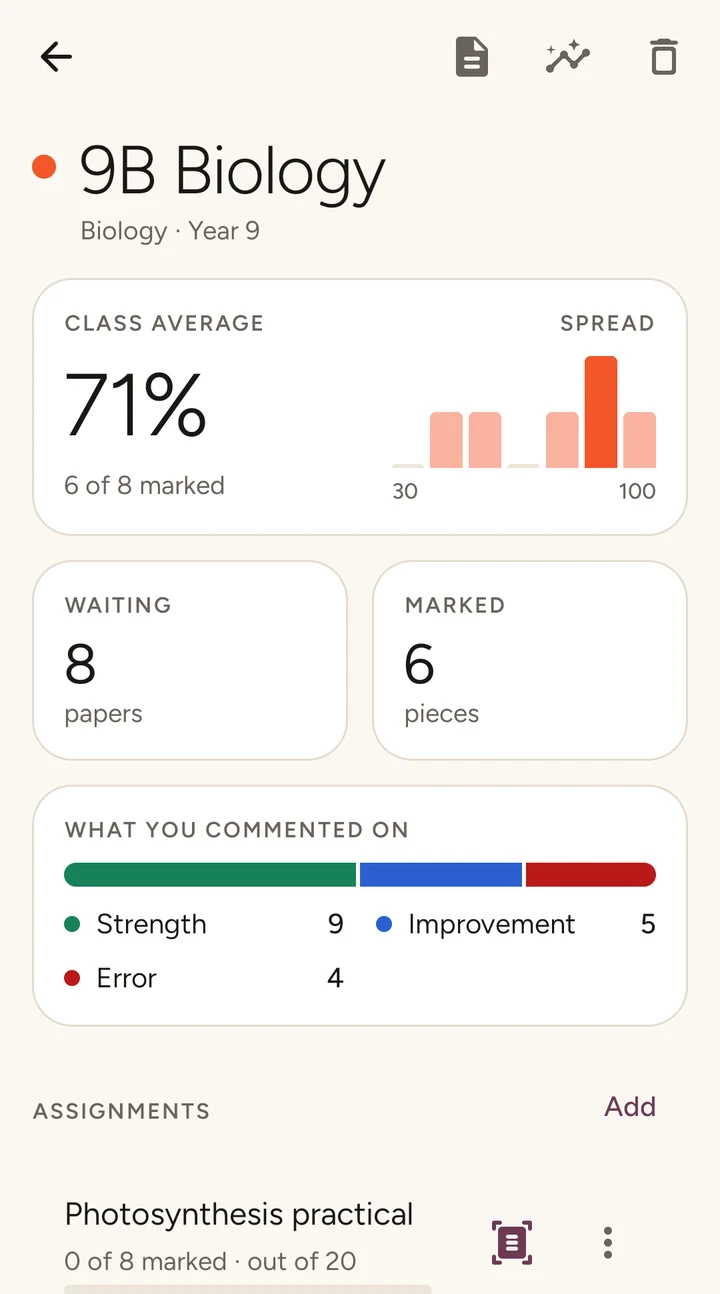
A class on a phone
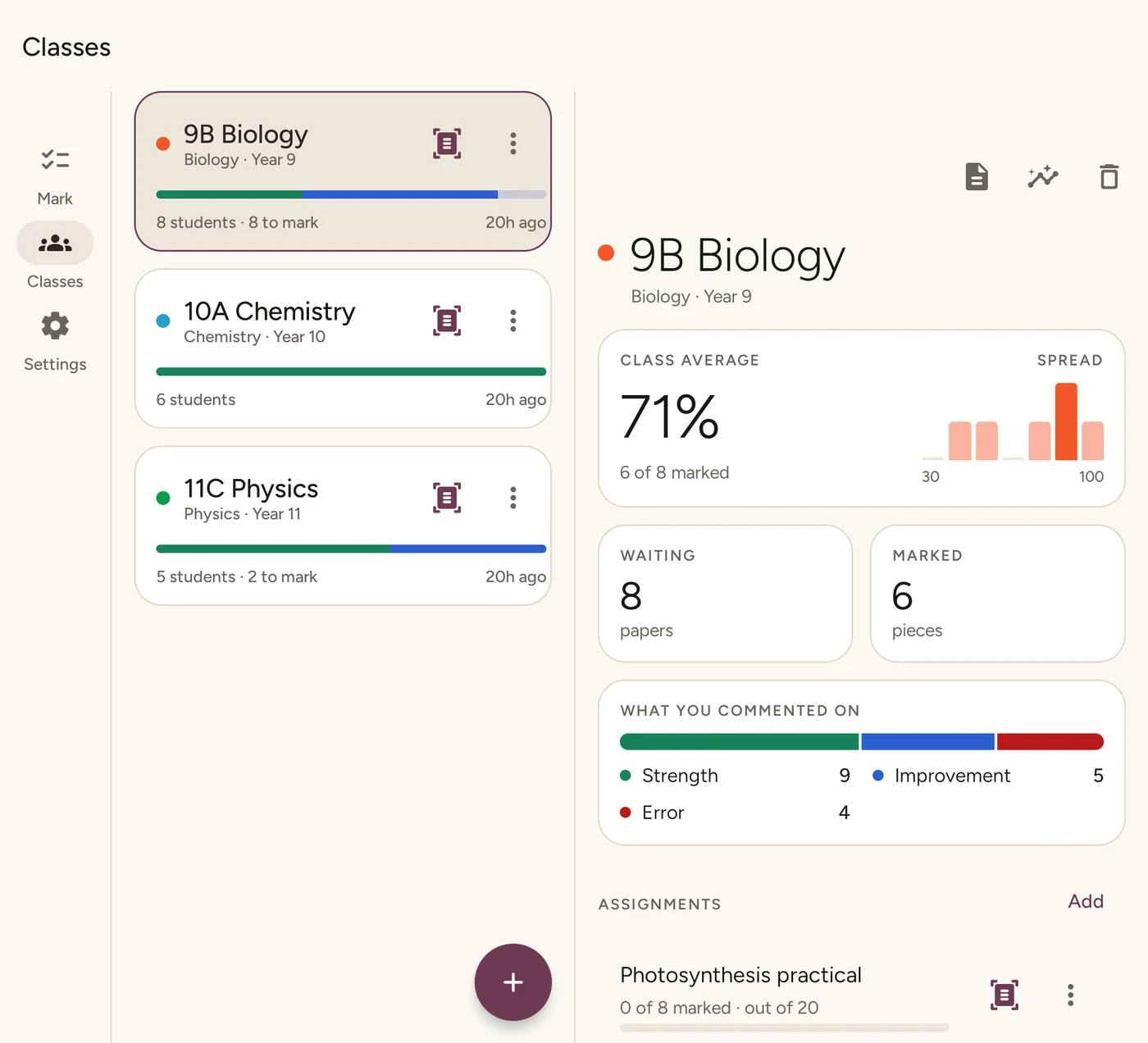
01Class average

The average so far, and how many of the set are marked.

10:24
A class on a tablet
01Your classes

All classes down the left, each with its pupil count and what is left to mark.

A class on a foldable
01Your classes

Classes on the left leaf, the chosen one on the right.

Slate
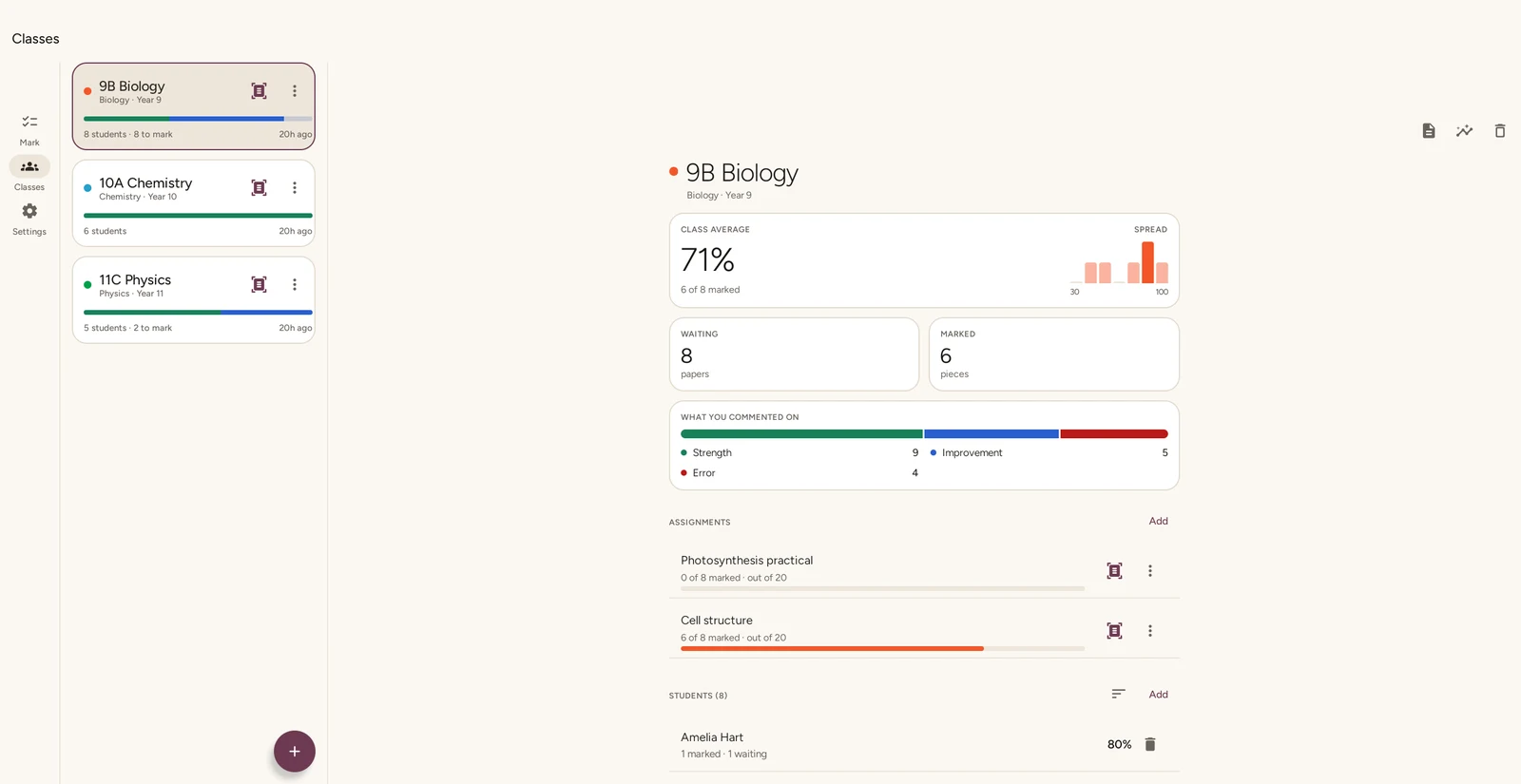
A class on a Chromebook or PC
01Your classes

Classes down the left with pupil counts and what is left to mark.

10:24
A class on a headset
01Your classes

Classes down the left with pupil counts and what is left to mark.

03

Assignments and mark scales

Scanned pages belong to an assignment, so create one first: a title, a maximum mark and, if you like, a line of marking guidance. The guidance stays beside you while you mark; it is yours, and never goes to a model.

Marks are scored out of the maximum and reported on the class's scale. Drag the score to see how one mark reads on each scale.

Score out of 3024

Points

24 / 30

Percent

80%

Italian

8

German

3

French

16 / 20

The score is kept as a share of the maximum. The class's scale only changes how it is shown, so a class out of 20 and a class out of 100 still compare.

04

Scanning the pile

Importing the pile

Tap Scan on the home screen or inside an assignment. The Android document scanner finds the edges of each page, straightens it and keeps going until the pile is done. Every page is saved to the app's own storage and appears in the pile, ready to mark.

A paper is attached to a pupil when you mark it. With AI connected, Slate can read the name off the first page and suggest the pupil.

Tap Scan on the home screen or inside an assignment. The Android document scanner finds the edges of each page, straightens it and keeps going until the pile is done. Every page is saved to the app's own storage and appears in the pile, ready to mark.

A tablet scans like a phone; many teachers scan on the phone and mark on the tablet from a backup.

Tap Scan on the home screen or inside an assignment. The Android document scanner finds the edges of each page, straightens it and keeps going until the pile is done. Every page is saved to the app's own storage and appears in the pile, ready to mark.

On a foldable, scan with it closed, phone-sized, then open it to mark.

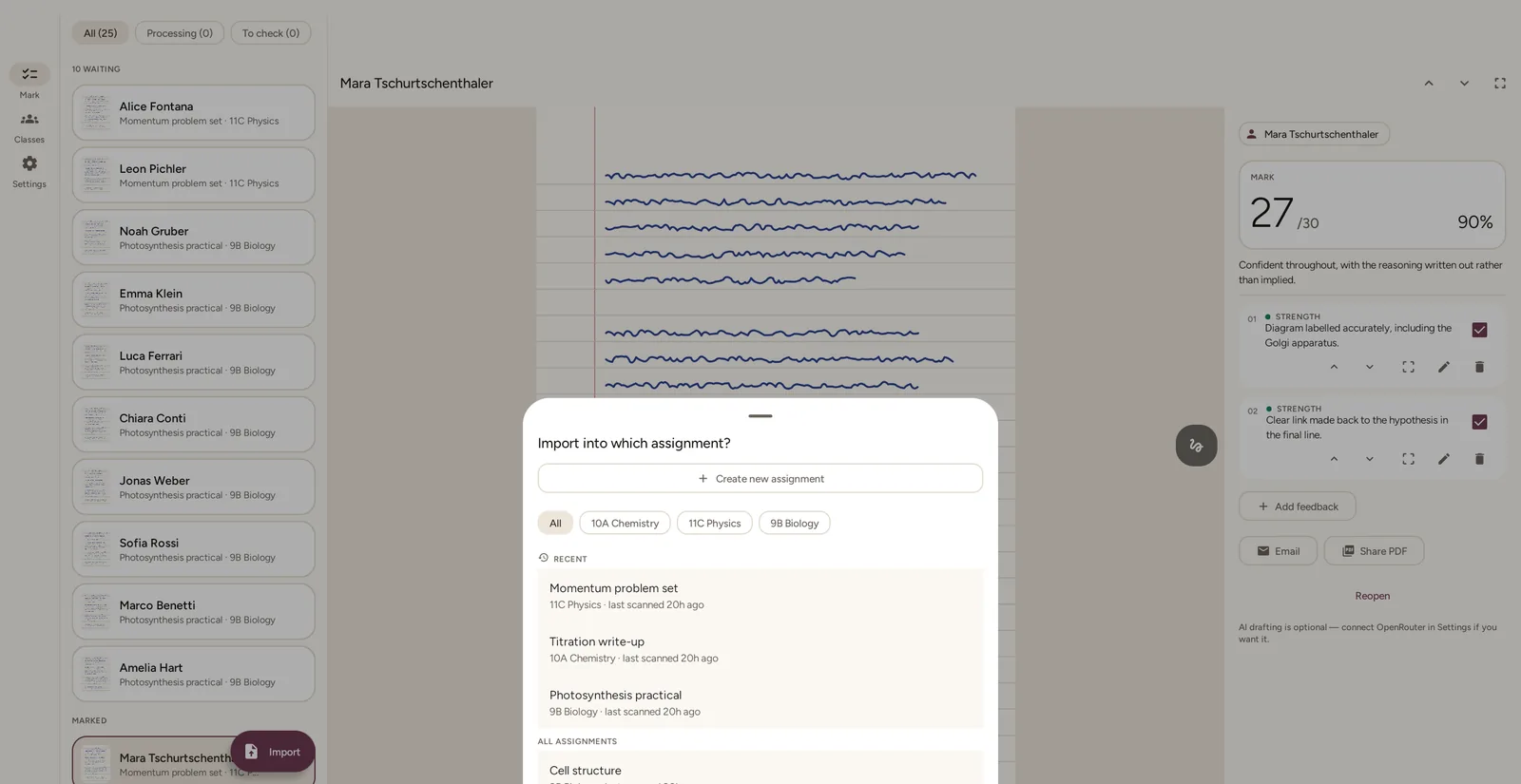
A Chromebook or PC has no camera, so the Scan button reads Import. Pick photos, scans or PDFs from your files and each one becomes a paper in the pile; each page of a PDF becomes a page of a paper. The dialog asks which assignment they belong to.

Scanned on a phone? Export a backup there and restore it here; the markbook comes across whole.

A headset has no camera, so the Scan button reads Import. Pick photos, scans or PDFs from your files and each one becomes a paper in the pile; each page of a PDF becomes a page of a paper. The dialog asks which assignment they belong to.

Scanned on a phone? Export a backup there and restore it here; the markbook comes across whole.

10:24
10:24
Slate
Importing pages on a Chromebook or PC
01Import

No camera, so the button reads Import: photos, scans or PDFs from your files.

10:24
Importing pages on a headset
01Import

No camera, so the button reads Import: photos, scans or PDFs from your files.

05

Marking a paper

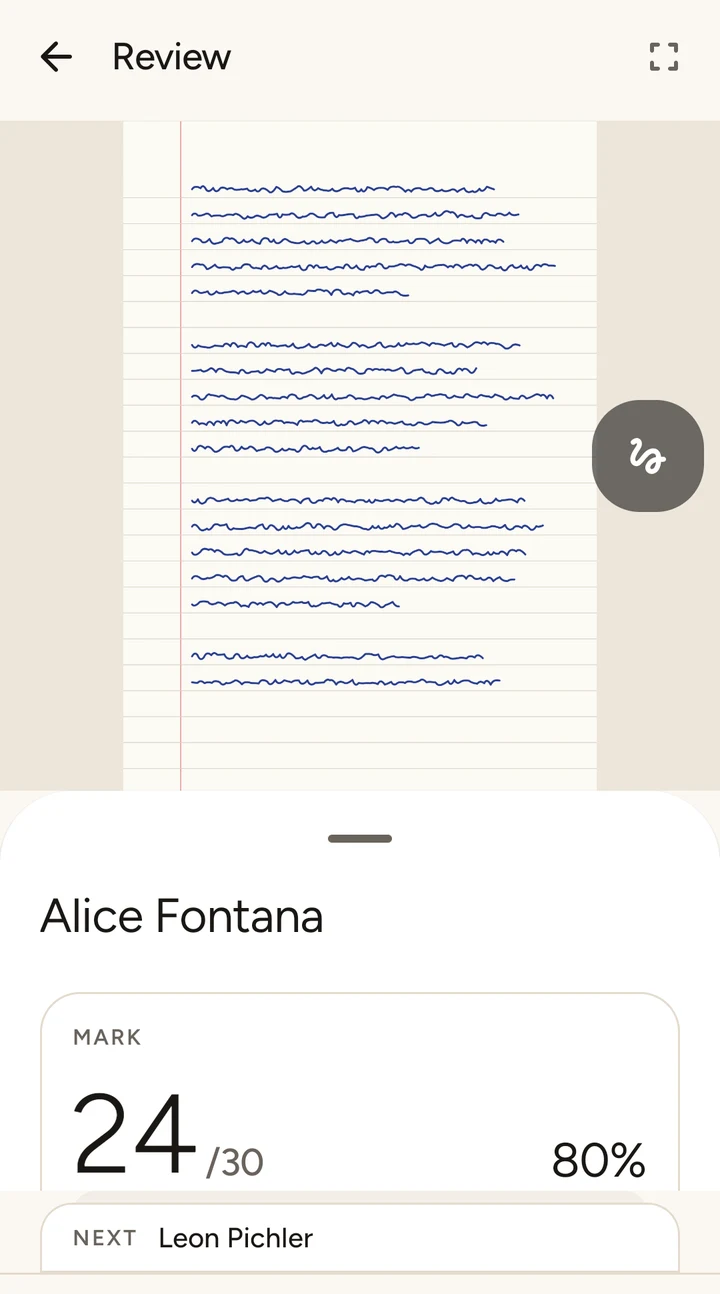
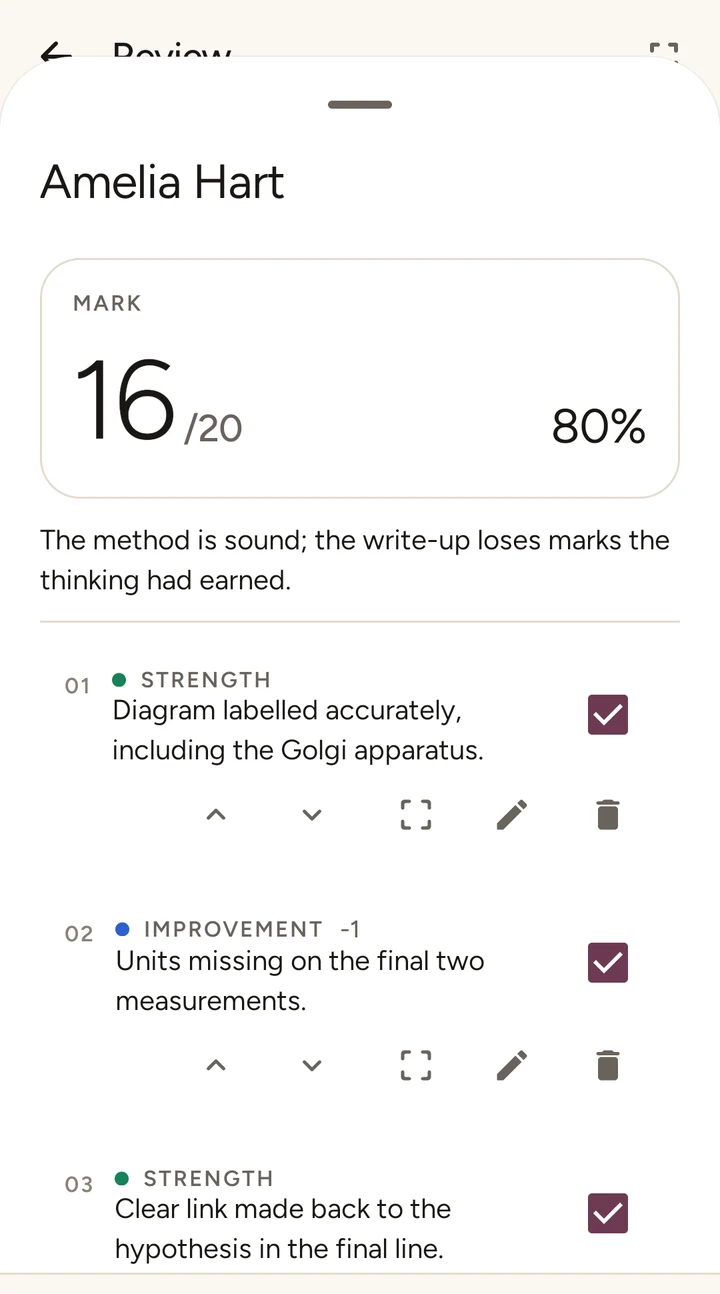
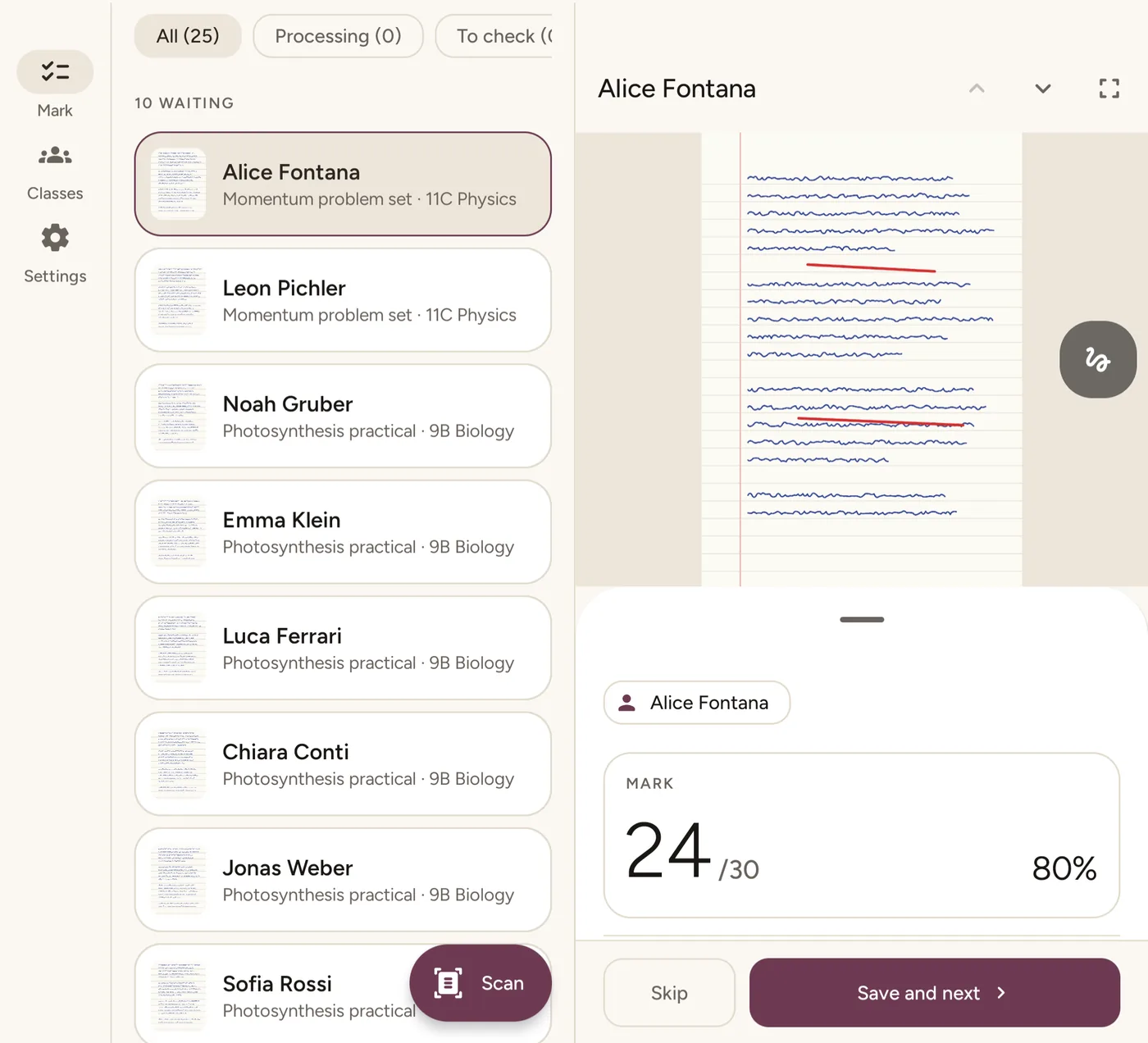
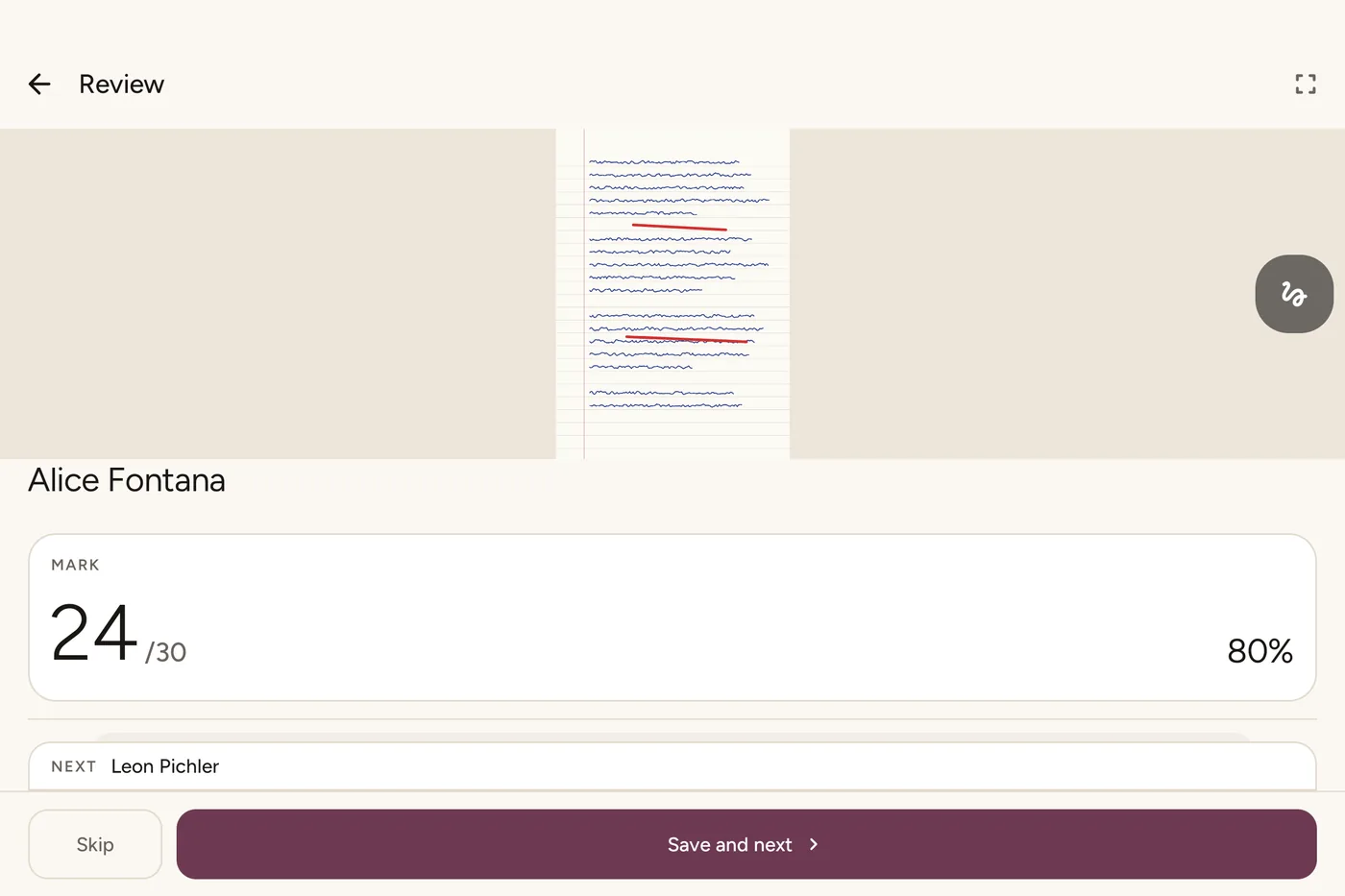
Open a paper from the pile. The page fills the screen and the mark slides up beneath it. Type a score, or attach points to individual comments and let the total become the score.

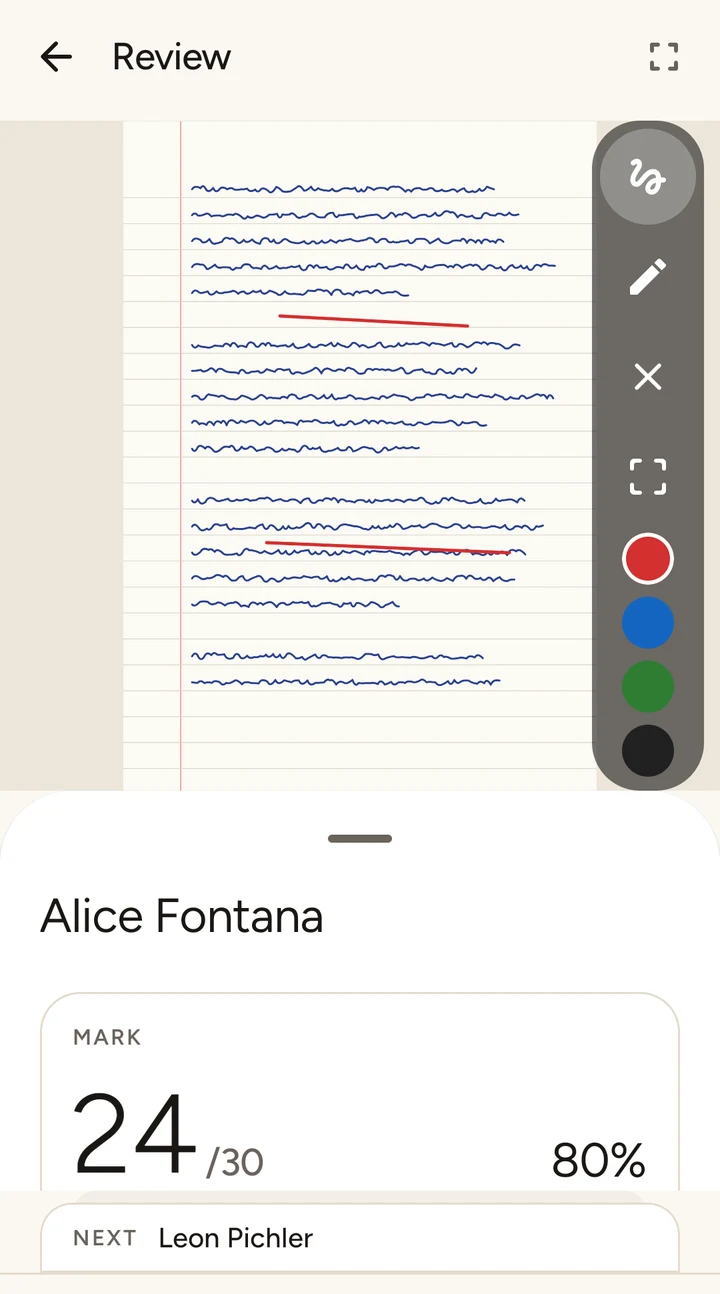
Every comment is filed under a comment type: Strength, Improvement and Error to begin with. Rename those or add your own in Settings. Ink and highlighter go straight onto the page with the pen tool.

Skip leaves the paper for later. Save and next commits the mark and opens the next paper, already waiting underneath.

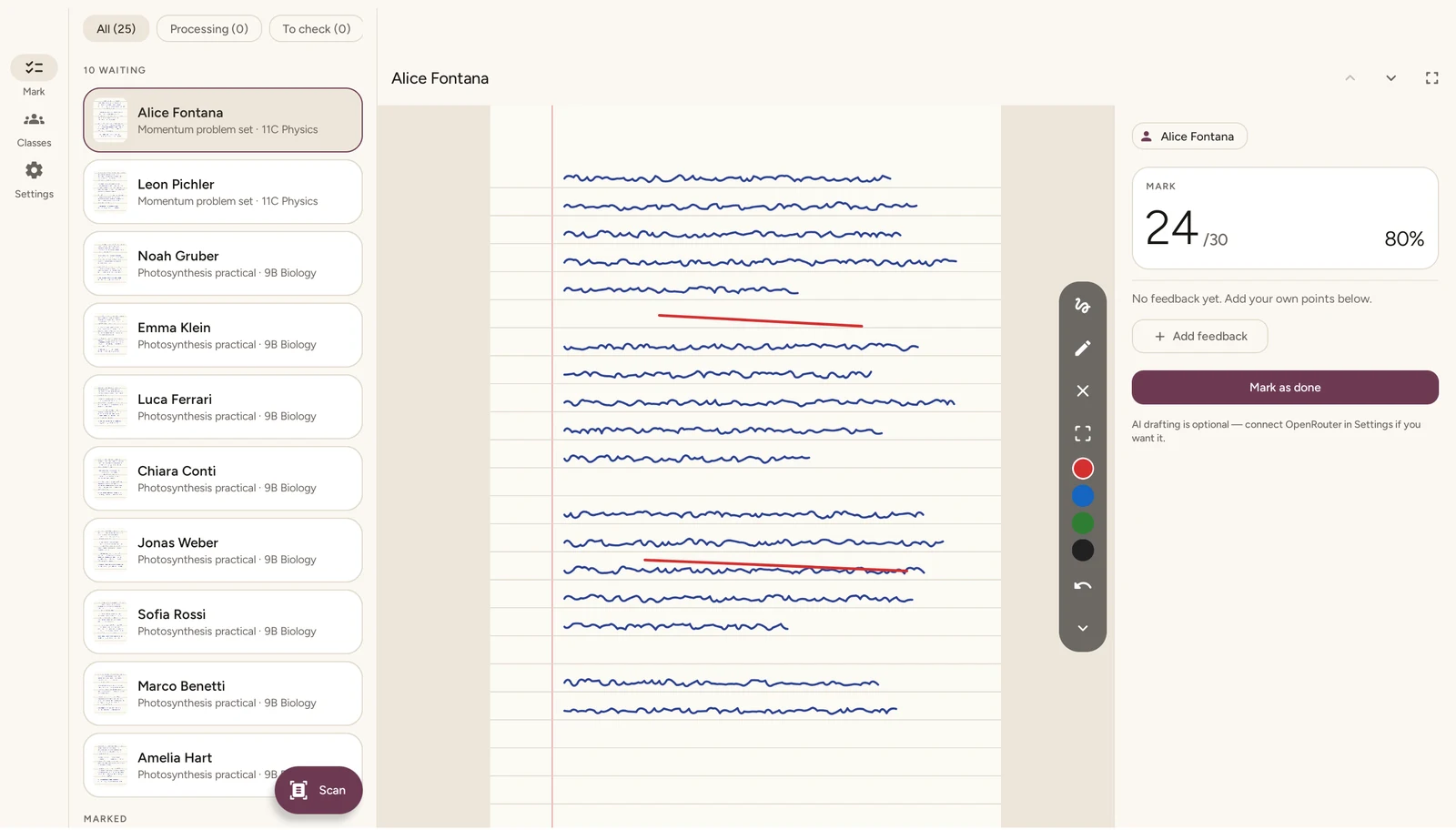
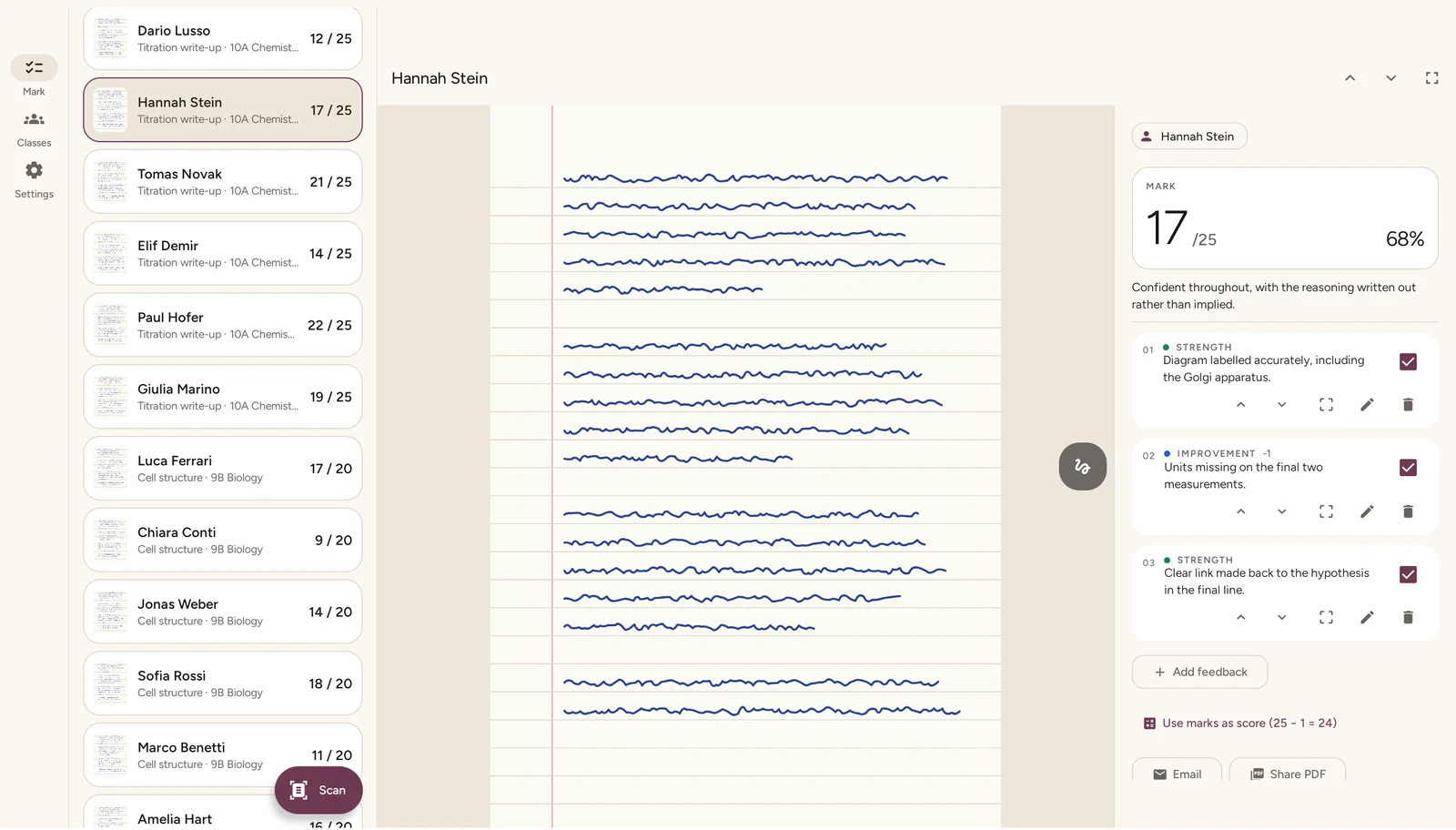
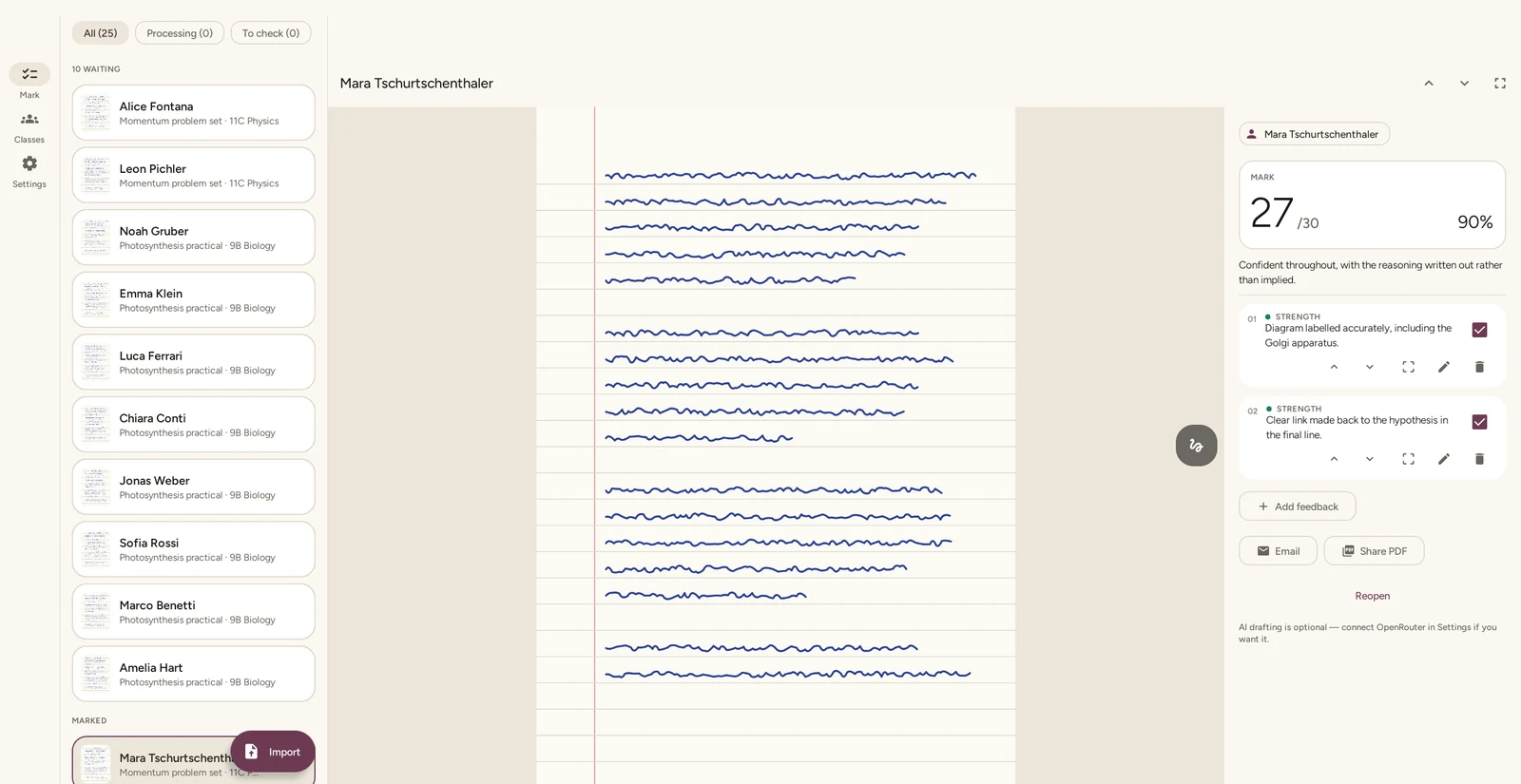
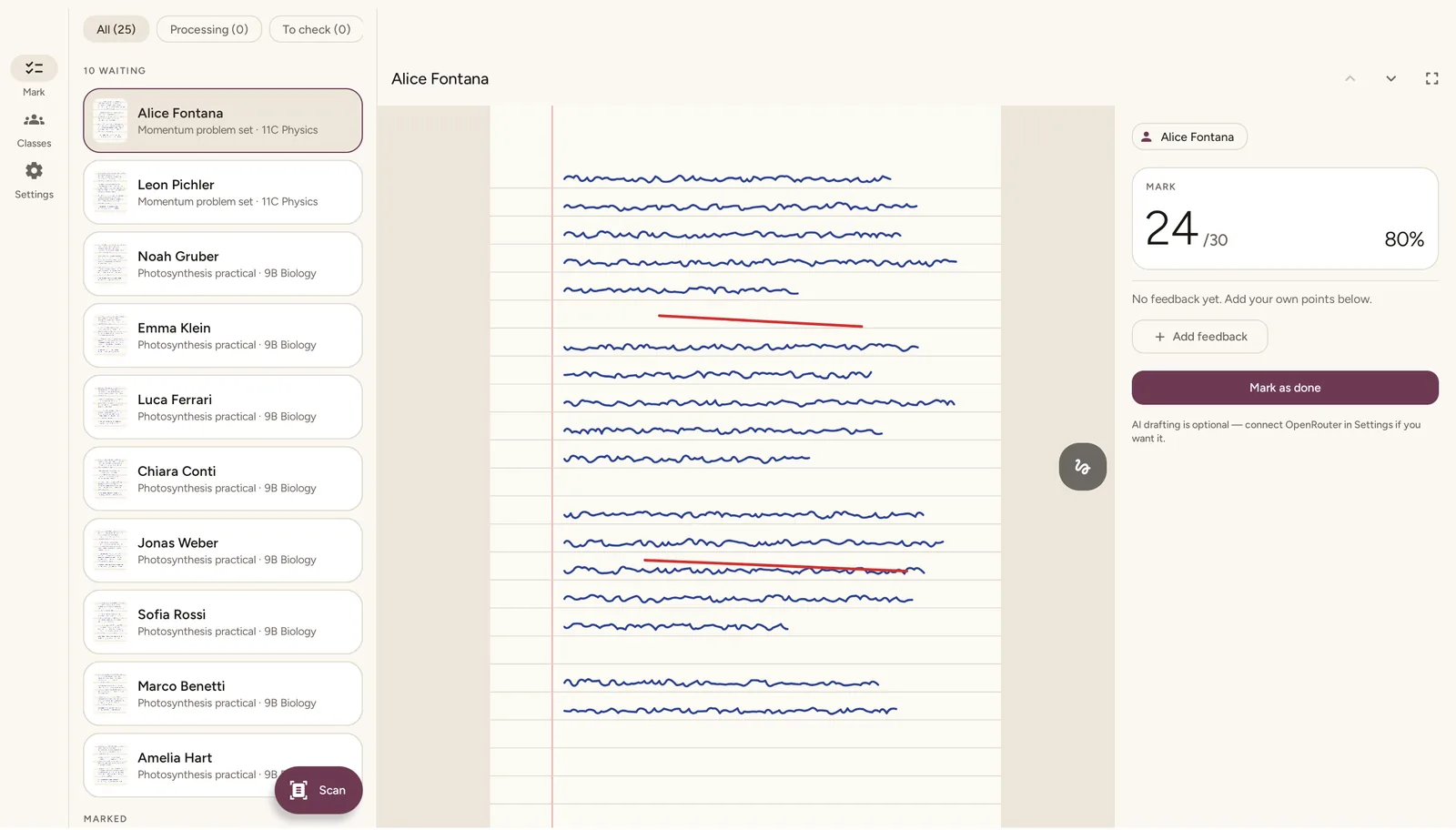
Open a paper from the pile. The page sits in the middle and the mark beside it, so you never lose the script to look at the comments. Type a score, or attach points to individual comments and let the total become the score.

Every comment is filed under a comment type: Strength, Improvement and Error to begin with. Rename those or add your own in Settings. Ink and highlighter go straight onto the page with the pen tool.

Skip leaves the paper for later. Save and next commits the mark and opens the next paper, already waiting underneath. With a keyboard: J next, K previous, Ctrl+Enter save and next, Escape closes.

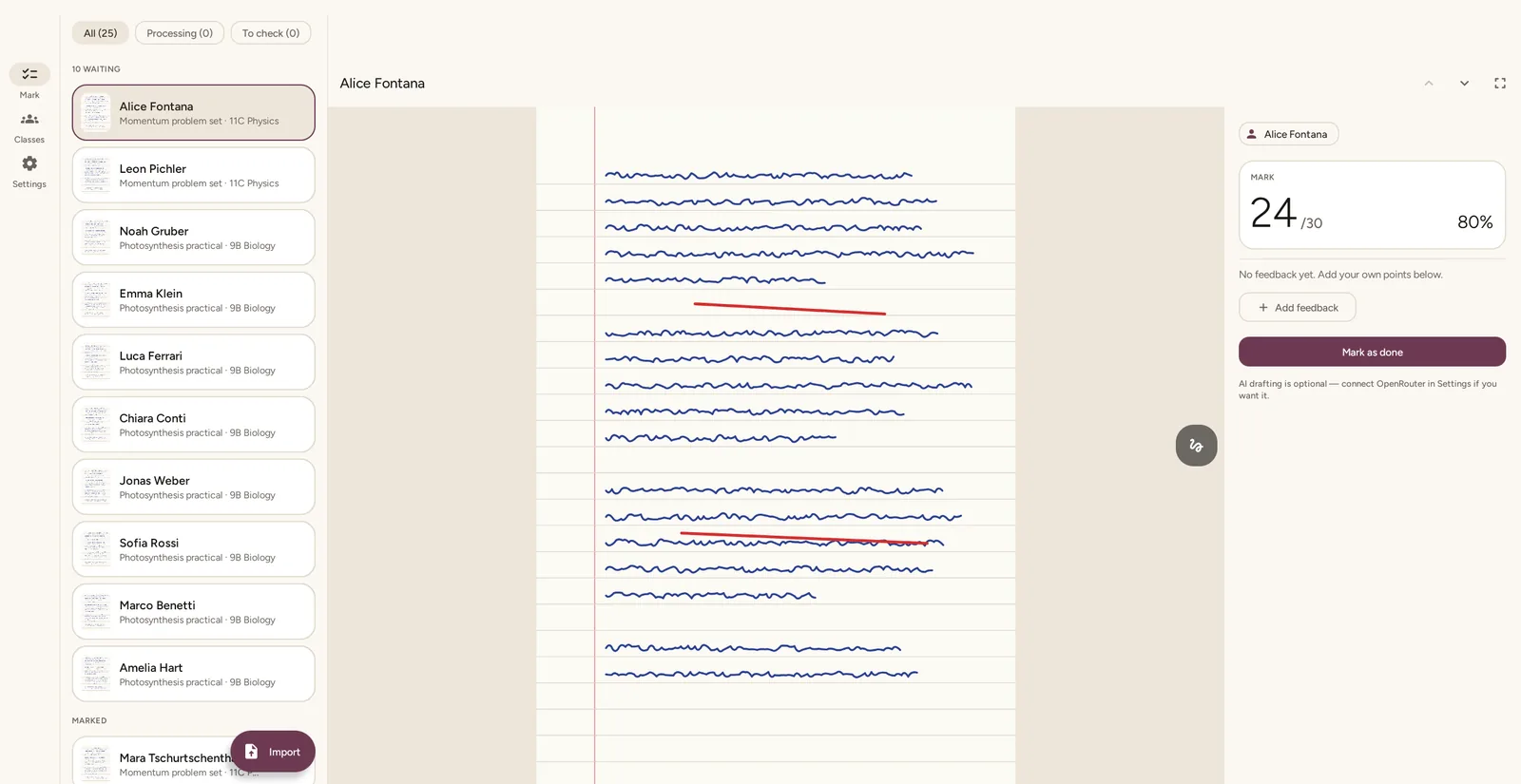
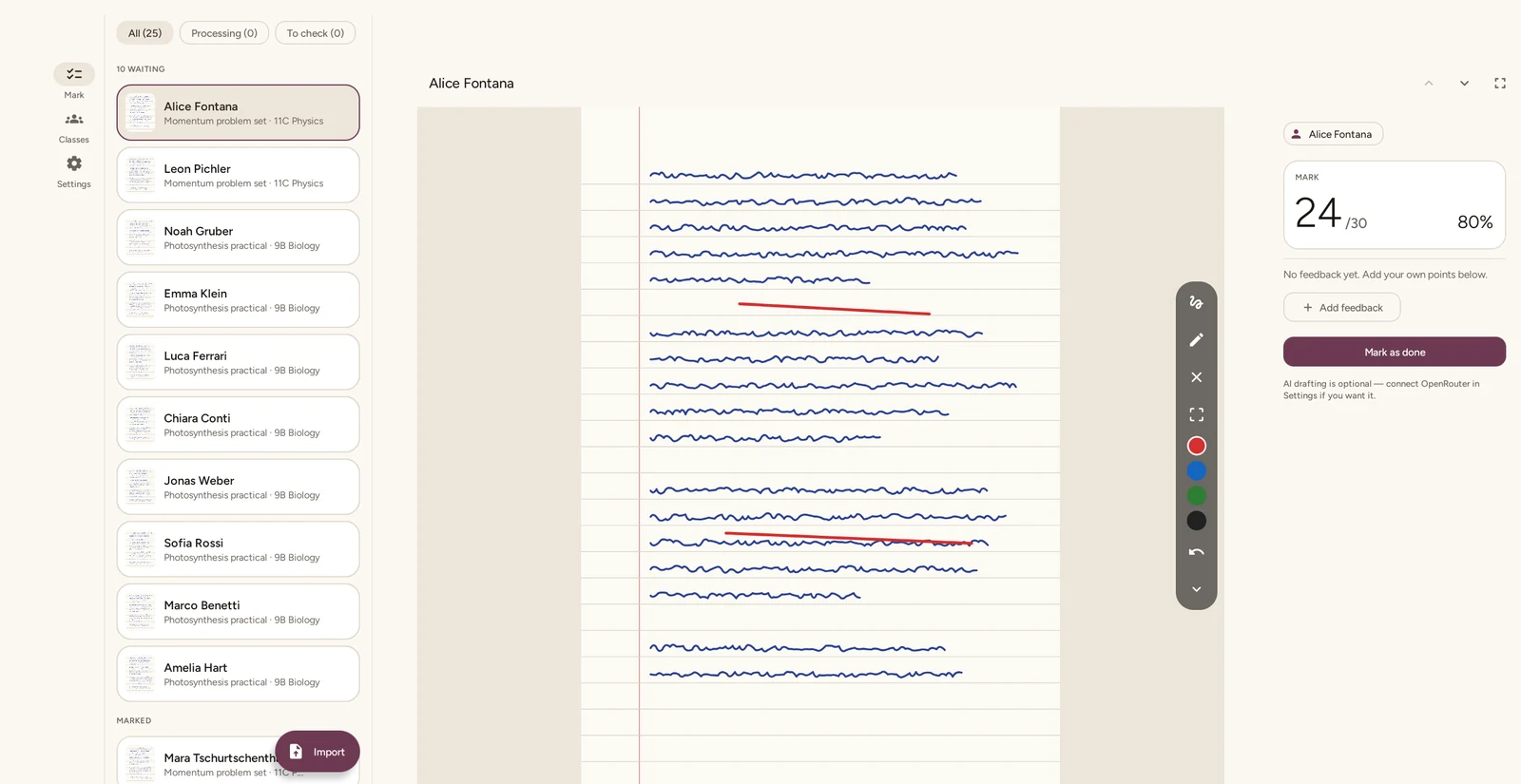
Open a paper from the pile. The page sits in the middle and the mark beside it, so you never lose the script to look at the comments. Type a score, or attach points to individual comments and let the total become the score.

Every comment is filed under a comment type: Strength, Improvement and Error to begin with. Rename those or add your own in Settings. Ink and highlighter go straight onto the page with the pen tool.

Skip leaves the paper for later. Save and next commits the mark and opens the next paper, already waiting underneath.

10:24
Marking a paper on a phone
01The mark

Score out of the maximum, the percentage beside it. The sheet slides up for comments.

10:24
Marking a paper on a tablet
01The pile

Papers waiting down the left; the one you are on is highlighted.

Marking a paper on a foldable
01The pile

On the left leaf, with the paper you are on highlighted.

Slate
Marking a paper on a Chromebook or PC
01The pile

Papers waiting down the left. J and K walk through them.

10:24
Marking a paper on a headset
01The pile

Papers waiting down the left. J and K walk through them.

06

Sending feedback home

Each piece of work can become one PDF: the score, the comments and the annotated page. Tap Email or Share on a marked paper and hand it to whichever app you use. The file goes only where you send it; nothing passes through a server on the way.

10:24
10:24
Sending feedback from a tablet
01Into one PDF

The score, the comments and the annotated page become one PDF.

Slate
Sending feedback from a Chromebook or PC
01Into one PDF

The score, the comments and the annotated page become one PDF.

10:24
Sending feedback from a headset
01Into one PDF

The score, the comments and the annotated page become one PDF.

07

AI help, if you want it

Slate marks without any AI, and no AI in Slate ever marks. If you want help reading and wording, open Settings and either Sign in with OpenRouter, which hands Slate a key, or paste a key from OpenRouter's Keys page. One account gives you every major model; Slate picks one that can read pages and you can change it any time.

The model can write out hard handwriting as text, reword the comments you have approved, turn them into a plain note for parents, draft marking guidance for you to edit and, once a set is marked, show where your own marks are out of line with each other. Everything it writes is labelled as AI text, and every mark stays yours: the app never asks a model for a score. Each request is listed under AI activity in Settings. You pay OpenRouter directly for what you use. Sign out in Settings to remove the key. Flip the switch to watch the one path data can take.

Your device

Pages, marks, comments

no network requests

OpenRouter

The model you picked

With the switch off, Slate is a complete markbook and never opens a connection. Flip it to see the only path data can take.

08

Backups, exports and imports

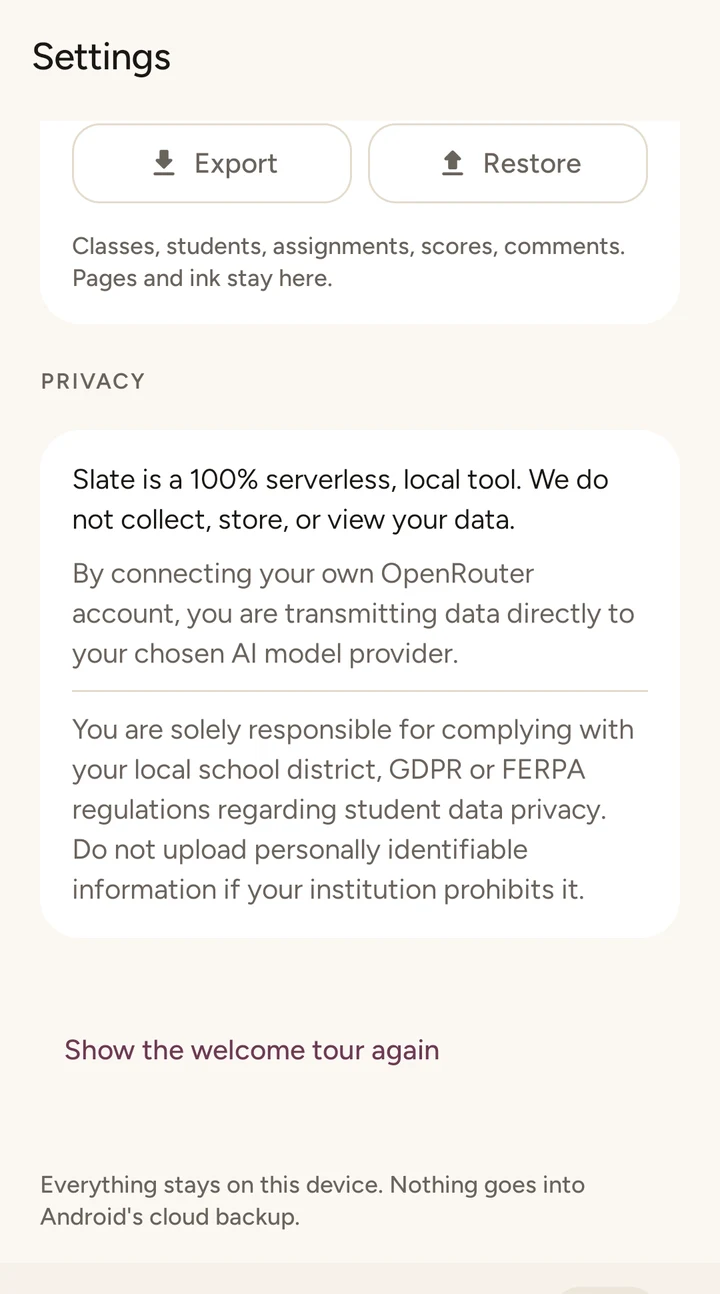
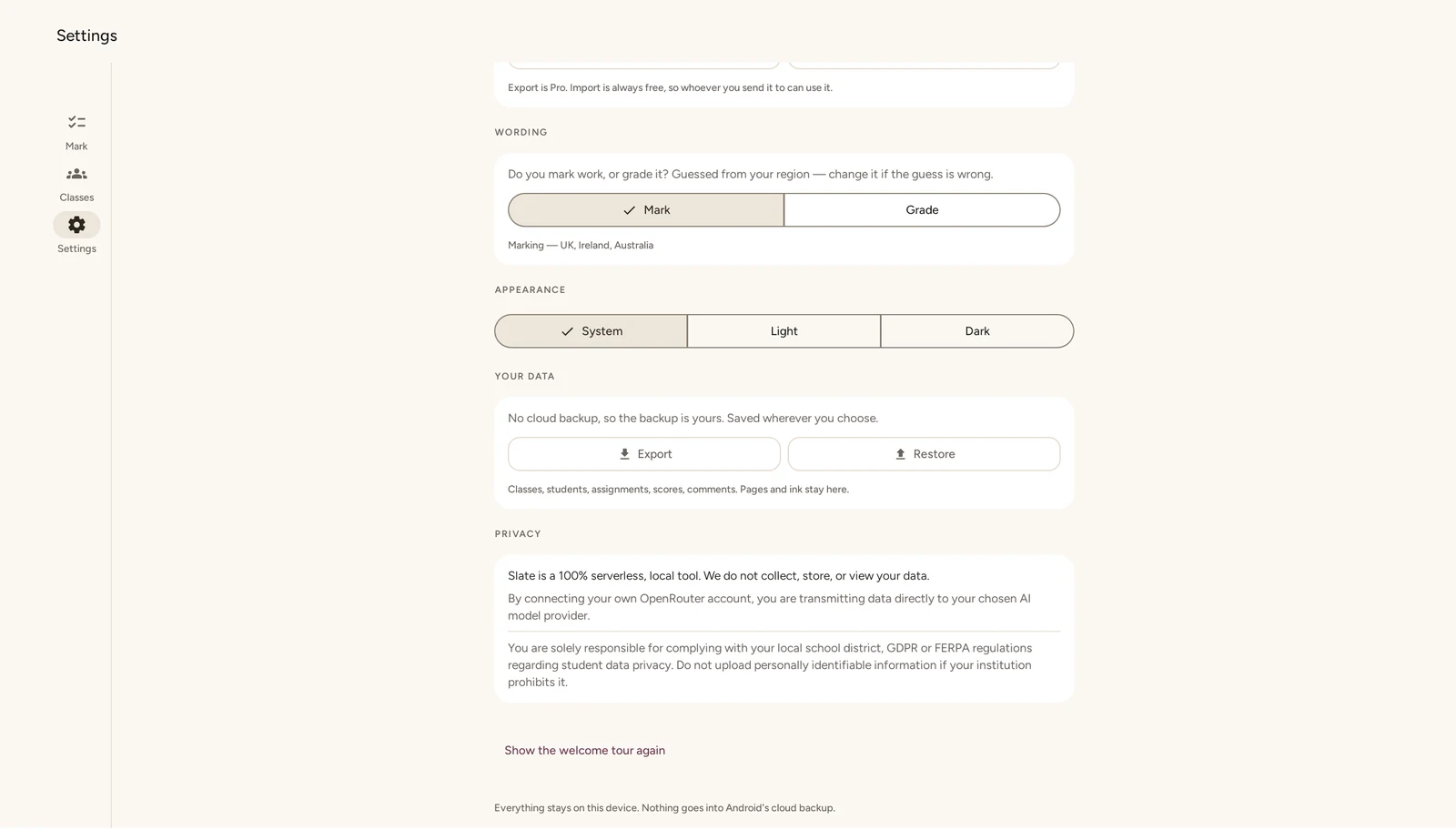
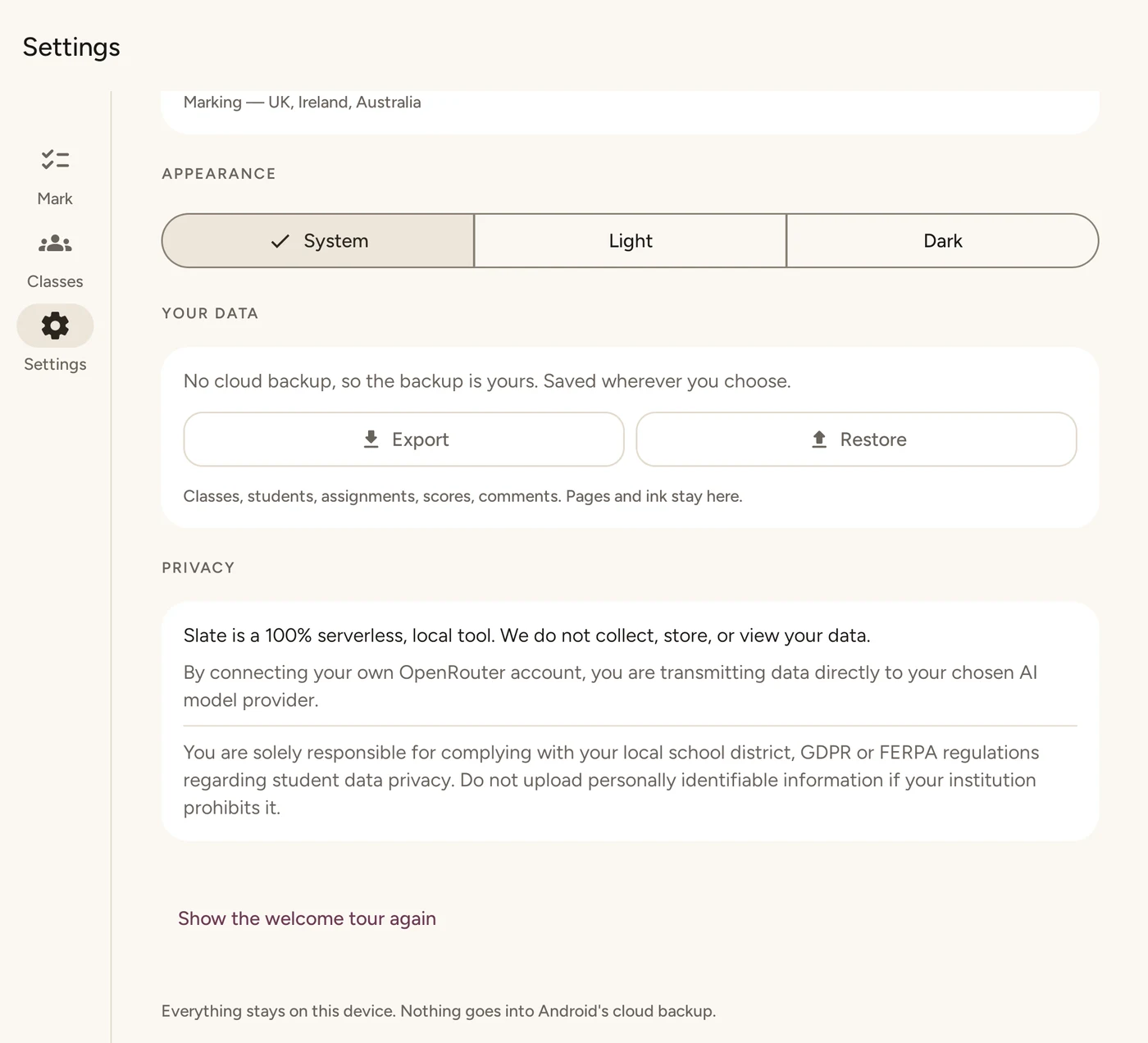
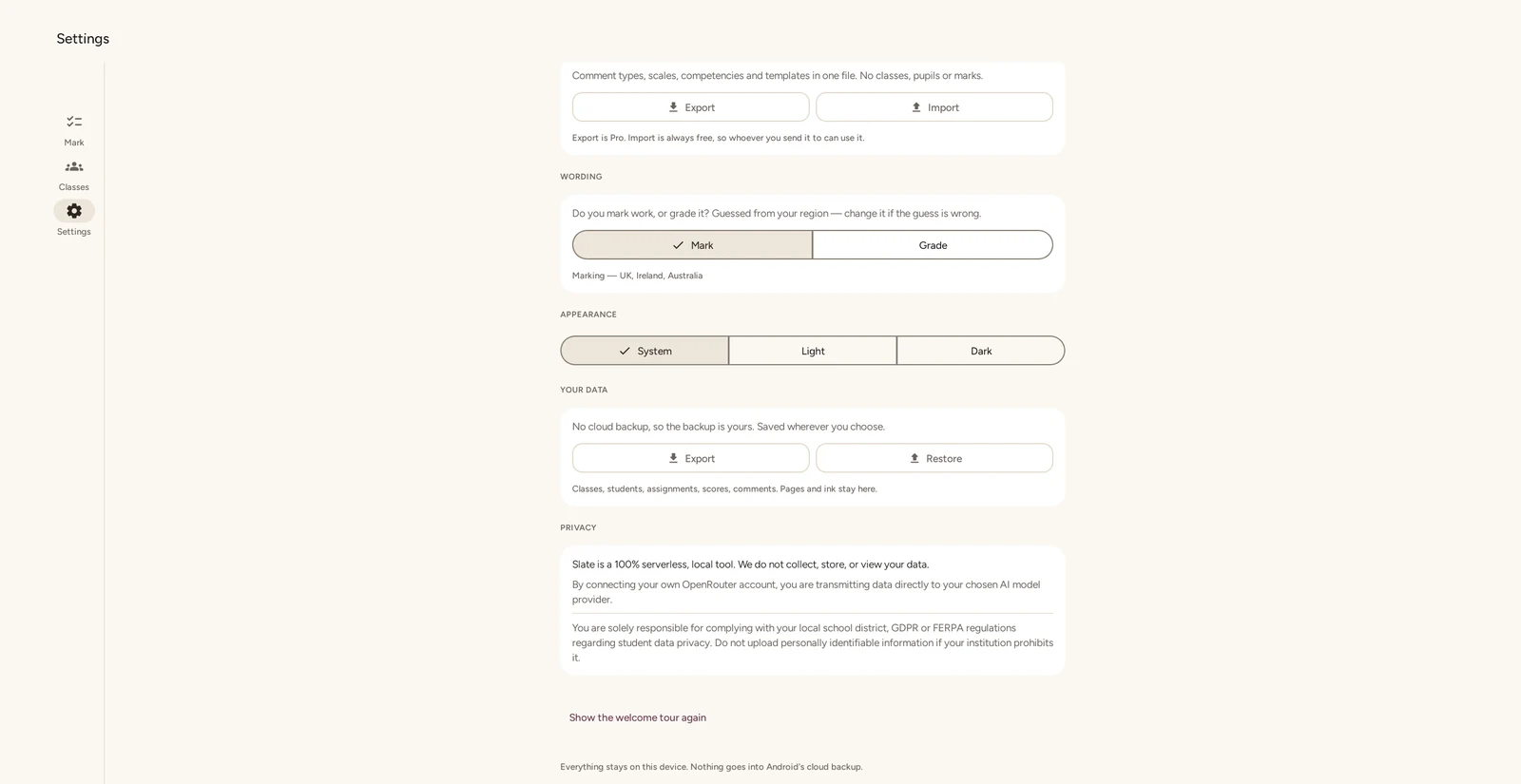
Nothing goes into Android's cloud backup, so the backup is yours to make. Export backup in Settings writes your classes, pupils, assignments, scores and comments to a file you choose; Restore reads it back on this or another device. Scanned pages and ink stay on the device they were made on.

Marks can also leave as a CSV for a spreadsheet. A department pack carries comment types, mark scales, competencies and templates, and nothing personal, so a colleague can import your setup. Exporting a pack is Pro; importing one is always free.

10:24
Settings on a phone
01Export backup

Writes classes, pupils, assignments, scores and comments to a file you choose. Pages and ink stay on the device.

10:24
Settings on a tablet
01Export backup

Writes classes, pupils, assignments, scores and comments to a file you choose.

Settings on a foldable
01Export backup

Writes classes, pupils, assignments, scores and comments to a file you choose.

Slate
Settings on a Chromebook or PC
01Export backup

Writes classes, pupils, assignments, scores and comments to a file you choose.

10:24
Settings on a headset
01Export backup

Writes classes, pupils, assignments, scores and comments to a file you choose.

09

On a phone

On a tablet

On a foldable

On a desk

On a headset

The one you have with you. Scan a pile in the staffroom, mark two papers on the bus. The home screen ranks what matters and Save and next keeps the next paper waiting.

The pile, the paper and the mark side by side. The list never scrolls away while you look at one script. A keyboard works here too: J and K step through the stack.

Open it like a book: the pile on one leaf, the paper on the other, nothing across the crease. Half open on the desk, the page stands up and the marking lies flat. Closed, it is your phone, with the markbook on the outer screen.

Install it from Google Play on a Chromebook or a PC. The same app in a resizable window, Import in place of Scan, and J, K and Ctrl+Enter to move through the stack without touching the mouse.

On an Android XR headset Slate opens as a floating panel, as big as you like, with the same three-pane layout a tablet gets. Drag it beside the real pile. Nothing is uploaded anywhere.

10:24
Slate's home screen on a phoneSlate's home screen on a phone
10:24
Slate on a tablet: list, page and mark side by side
Slate unfolded, the pile on one leaf and the plan on the other

Or drag the right half of the screen.

Slate
Slate in a desktop window, importing pages from files
JnextKprevious CtrlEntersave and next
10:24
Slate as a floating panel on a headset

10

Slate Pro

Everything above is free and stays free. Pro adds the paperwork around the marking: term reports, the whole class in one pass, parents' evening cards, question-by-question marking, rubrics and templates, target grades, cohorts. Bought once through Google Play, at the price shown in the app, and restored on any device with the same Google account. Pro features added later are included.

What Pro adds, in full.

11

Privacy, in short

Slate has no accounts, no servers and no analytics. Pages, marks and comments live in the app's private storage on your device and the developer never receives them. The only time anything leaves is when you share a PDF, save a backup, or ask a connected model to read or reword something, and you do all three deliberately.

Read the privacy policy.

12

Something not covered?

Write to corect.it.app@gmail.com and say you were on a phone and which screen. Bugs, missing scales, a comment type that should be built in: all welcome.

Write to corect.it.app@gmail.com and say you were on a tablet and which screen. Bugs, missing scales, a comment type that should be built in: all welcome.

Write to corect.it.app@gmail.com and say you were on a foldable and which screen. Bugs, missing scales, a comment type that should be built in: all welcome.

Write to corect.it.app@gmail.com and say you were on a Chromebook or PC and which screen. Bugs, missing scales, a comment type that should be built in: all welcome.

Write to corect.it.app@gmail.com and say you were on a headset and which screen. Bugs, missing scales, a comment type that should be built in: all welcome.

Ready to mark the first set?

Free on Google Play. Nothing to sign up for.

Get it on Google Play